
Appearance
3D Gaussian Splatting
Documentation · Crystal Web viewer · Code Structure
Model production and viewing
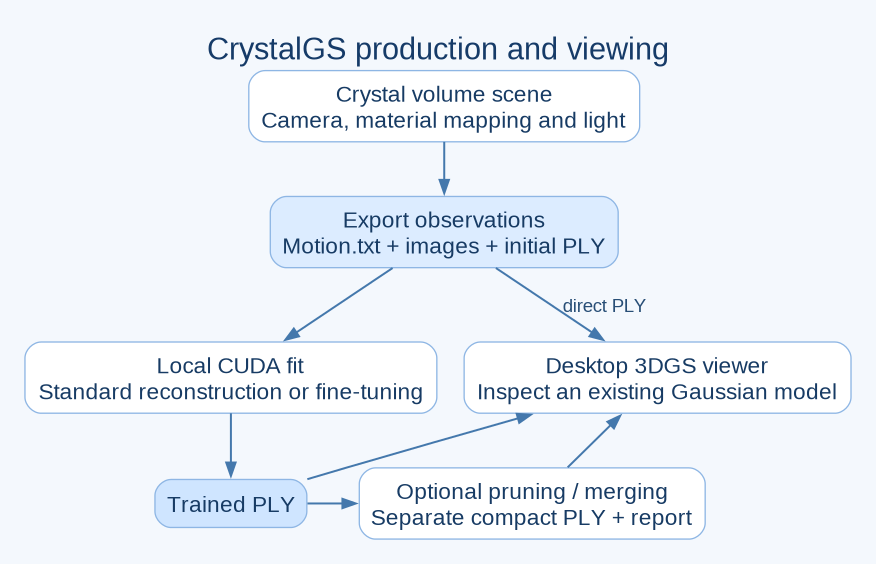
Figure 1. Use the volume renderer to produce observations, the local workbench to fit or compact a model, and a viewer to inspect the result.
| Entry point | Use it for | Input and result |
|---|---|---|
| Crystal desktop 3DGS viewer | Load your own model. Adjust the display box, texture, lighting, shadows or stereo. | Local Gaussian .ply or .splat → interactive view |
| Crystal Web viewer | Inspect the hosted samples from the homepage. | Site sample → interactive browser view |
| Local GS3D workbench | Train from a prepared project, evaluate held-out views, prune or merge Gaussians. | Crystal observations and an initial PLY → trained and optionally compacted PLY |
Example 1. View a local Gaussian model
- Drag a local 3DGS
.splator Gaussian.plyinto the Crystal home window. In the resulting viewer, drag another file into the viewport to replace the model. - Drag with the left mouse button to orbit the model, or the right button to pan. The wheel moves the model forward or backward with the display box fixed. Double-click to reset the pose.
- Open View → 3DGS Controls, or press
Ctrl+Shift+P, to show the settings panel after closing it. - Adjust box depth and texture, then set the center-camera light and ambient illumination. Check shadows from several poses.
- Choose red–cyan stereo for common glasses. The left view supplies red and the right view supplies green and blue. Select red–blue for red/blue glasses.
The PLY input must describe Gaussians, with positions, scales, rotations, opacities and spherical-harmonic coefficients. A generic point-cloud PLY can serve as an initialization for training. A .splat uses 32-byte records with linear scale and a WXYZ quaternion. The viewer shows a replacement after the candidate model loads successfully.
Example 2. Generate observations and fine-tune
- Open a volume scene and configure its camera, lighting and transfer function. In its DeepLearning dock, use the data generation tools to produce a project. The 3D Gaussians Ply action controls the direct Gaussian export.
- Confirm the project contains
Motion.txtandimages/. Standard reconstruction additionally usessparse_pc.ply. CrystalGS fine-tuning usesCrystalGS.ply. - From your Crystal source checkout, run
Support/GS3D/Start_CrystalGS_GUI.bat. Openhttp://127.0.0.1:8765/in your browser. The launcher serves the page and handles requests, so keep it running while using the workbench. - In Python environment, enter the absolute path to the task interpreter and click Check & save. Review the Python, PyTorch, gsplat and CUDA check. When an installation plan appears, review its package source and target environment before selecting Confirm installation. Training and view evaluation require a working CUDA environment.
- Under Project data, select the project and click Inspect. Select CrystalGS fine-tuning to refine the direct model, or Standard reconstruction for a sparse initialization. Record your training preset, view split, seed and steps with the output.
- Wait for the job to finish and open the resulting
Crystal_gsplat.plyorVolume_gsplat.plyin the desktop viewer. Check the side and oblique views where artifacts can be more apparent than in the original preview.
Example 3. Reduce the number of Gaussians
- Keep the original trained PLY and record its Gaussian count.
- In the workbench, select the existing-PLY postprocessing action or enable compaction after training. Enable pruning first and start with a low opacity threshold, such as
0.005. Thin structures can be sensitive to this threshold. - Try merging in a separate output. Keep the merge radius in model/world units and review accepted pair counts before raising it. Merging also checks covariance and spherical-harmonic similarity.
- Inspect the separate
*_compact.plyand*_compact.postprocess.json. Compare the original and compact models at the same held-out viewpoints, render settings and output resolution. Record the point-count change and any visible loss, especially in thin structures and partial transparency.
Optional paired evaluation can report image metrics when a compatible manifest and CUDA are available. A smaller model can have different appearance, so use the same observations and camera poses before selecting it for a website sample.