Appearance
Software Operation
Documentation · Volumes and Scenes · Transfer Functions and Segmentation
Start Crystal
Open Crystal.exe from the deployed Release directory. Keep the executable next to the deployed Resources, Qt runtime and renderer libraries. The Theme selector on the home page applies to the desktop interface. Settings provides the language switch.
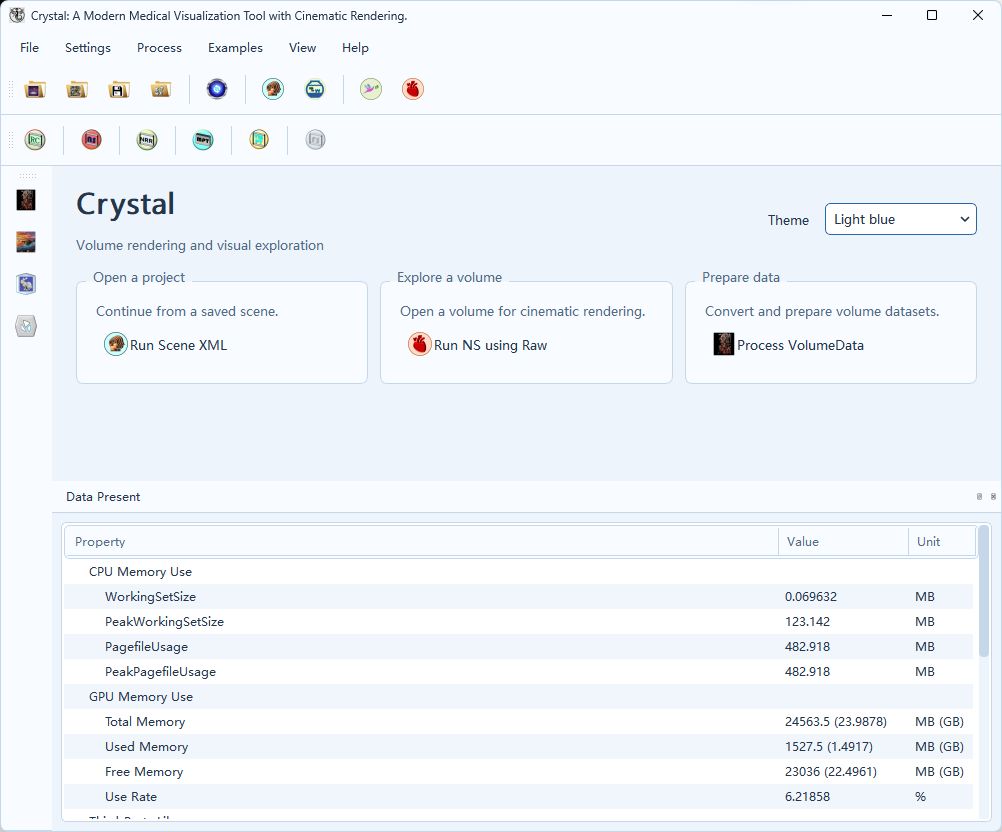
Figure 1. Crystal Release home window. Use the Examples menu for a known-good scene, or the central home actions to begin with your own files.
| Starting file | Entry point | Result |
|---|---|---|
| Bundled demo | Examples → a renderer’s examples | Loads a prepared scene and its data, mapping, lighting and camera |
| Saved XML or JSON | Run Scene XML or Run Scene Json | Opens the saved configuration and resolves its referenced assets |
.inforaw or legacy .info | Run NS using Raw, or drag the volume onto the home view | Creates or opens a scene beside the volume. The directory must be writable. |
Gaussian .splat or .ply | Drop the local model on the home window | Opens the desktop Gaussian viewer |
Example 1. Render Engine-KM
- In the home window, choose Examples → Run NS Examples.
- Double-click Engine-KM in the list. Crystal opens a separate rendering window.
- Wait for the engine block to appear. In the default layout, Data Mapper is on the left, the image is in the center and view/scene controls are on the right.
- Open the Data Present dock on the right. On this demo the resolution is
256 × 256 × 128, the stored intensity window is[0,255]and Current SPP increases while the view is idle. Timing and SPP in the screenshot are observations from the test run.
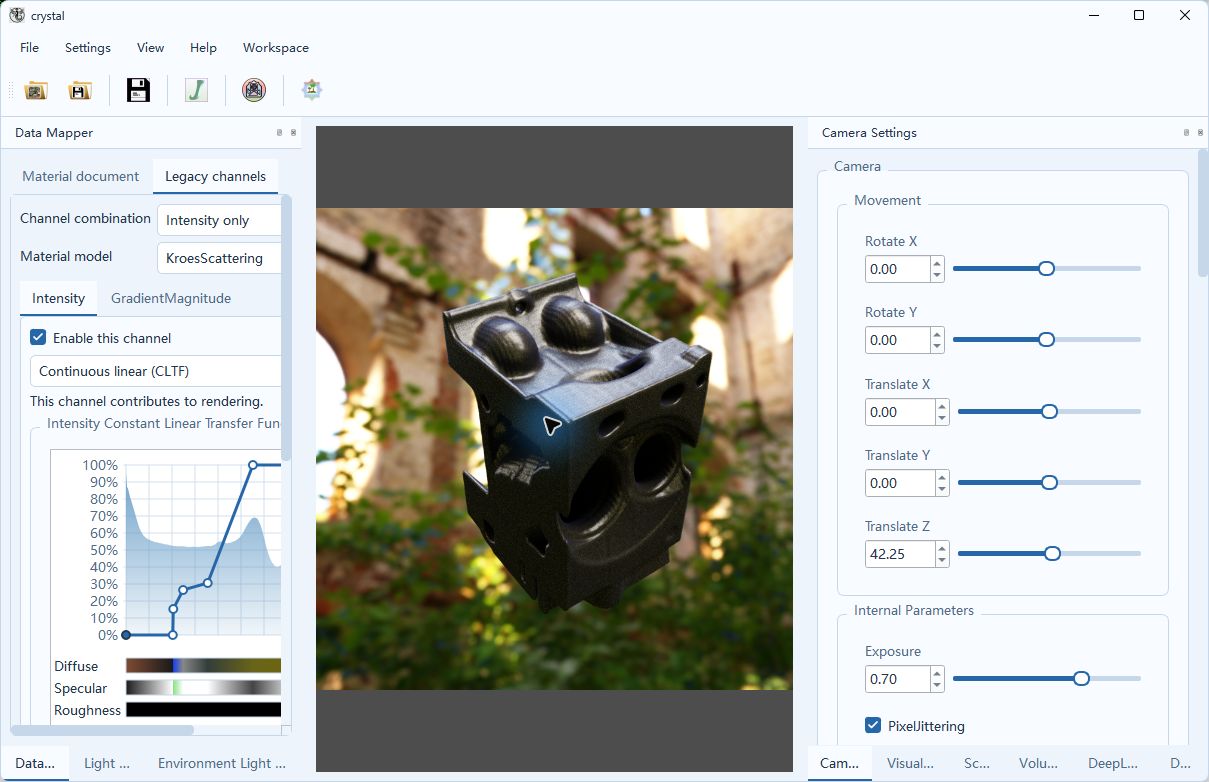
Figure 2. Engine-KM rendered in the Release desktop build. The left panel shows the saved Intensity CLTF. The right panel controls camera movement and exposure.
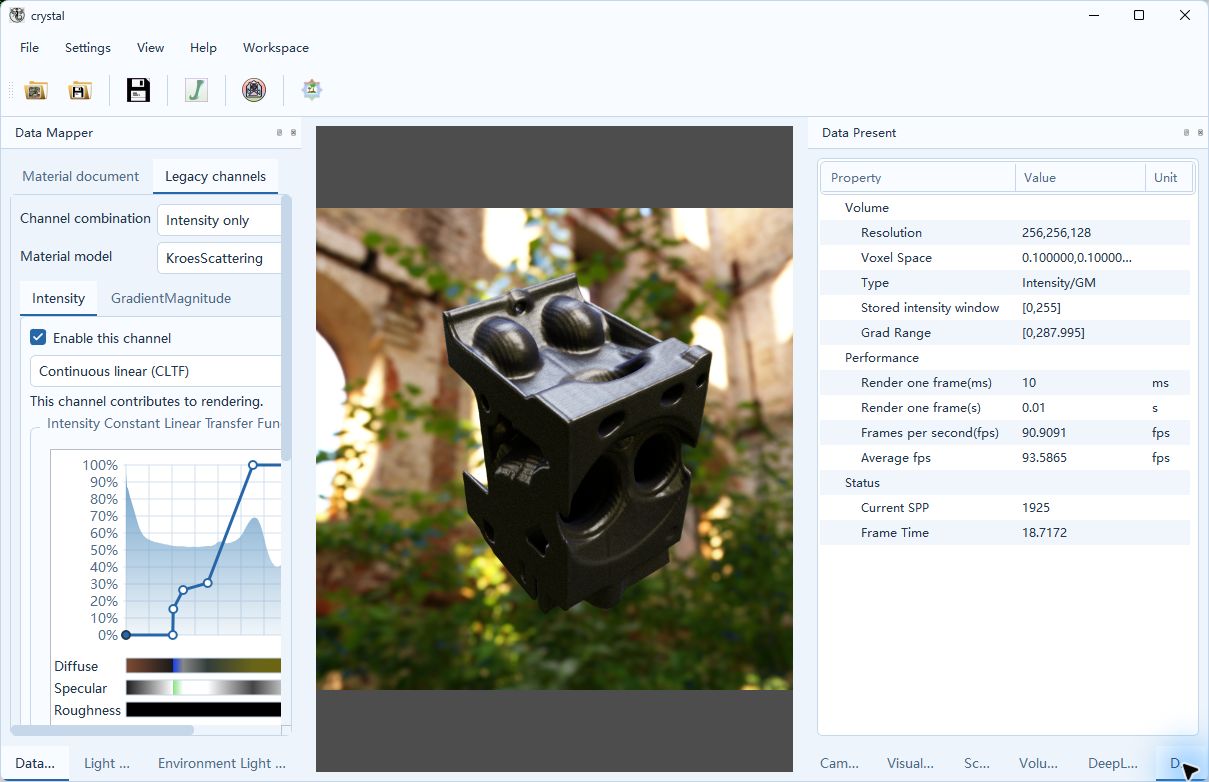
Figure 3. Data Present displays the active resolution, stored intensity window and sample accumulation.
Example 2. Inspect a scene before editing
- In the Engine-KM rendering window, select Volume Settings on the right.
- Compare Voxel spacing X/Y/Z with Active voxel spacing. The shipped scene shows
(1,1,1)with a scale of0.1, yielding active spacing of(0.1,0.1,0.1). - Check Automatic intensity range. Crystal uses the observed source range while this option is selected. Turn it off when applying a manual source-value window. Follow the spacing and window walkthrough for an edited scene.
- Use Camera Settings to inspect Rotate X/Y, Translate X/Y/Z or Exposure. After a view change, allow progressive rendering to accumulate before comparing images.
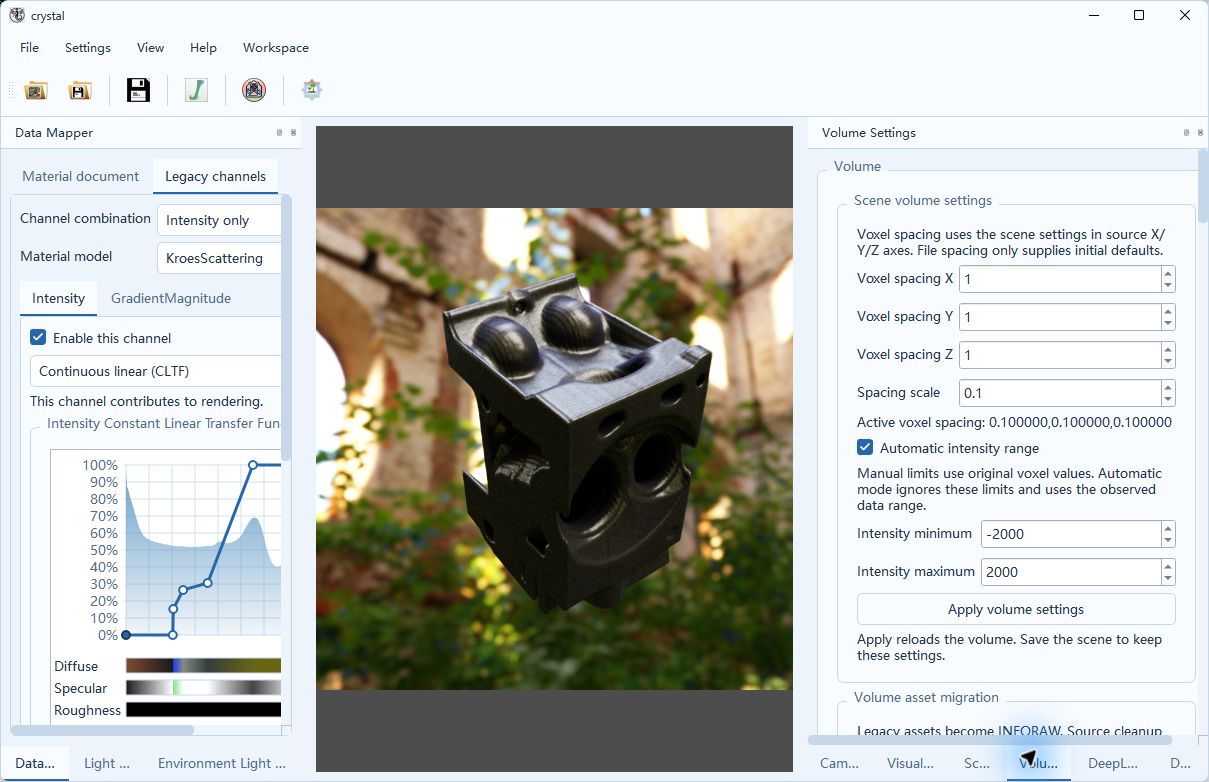
Figure 4. Scene volume settings distinguish source-axis input fields from the effective values in the active volume.
Example 3. Open your own data and save a scene
- Place a small INFORAW in a writable project directory. If you have a legacy
.infofile, keep its referenced payload beside it as specified in the descriptor. - Select Run NS using Raw and choose the volume. Crystal can create
<volume>-NS-Scene.xmlalongside it. You can also use a pre-existing XML or JSON from the corresponding home action. - Verify the processed resolution in Data Present and the active spacing in Volume Settings. If the background appears with no visible sample, inspect the enabled mapping channel, opacity curve and intensity window together.
- Use Save Scene or Save Scene Json, then reopen the result from the home window. If you move the project to another folder, keep the scene and all
SceneFiledependencies together. See path resolution.
Solve common startup problems
| Symptom | Check |
|---|---|
| The app starts without the expected demos | Confirm Resources/Examples-Demo is in the deployed Release folder and use the Examples menu. |
| A volume was found but no scene was created | Try placing it in a directory where you can create the companion XML. Review your file type, INFORAW checksum or legacy descriptor. |
| A tab is shortened or a dock is hidden | Use the dock tabs or the View menu. The Workspace menu offers layouts for different tasks. |
| The viewport shows only the environment | Check Data Present, intensity window, mapping opacity, active renderer and the camera’s view of the volume. |
| The render is noisy just after a change | Pause interaction and watch Current SPP. Changing the camera or optical mapping can restart accumulation. |
Earlier launcher layout
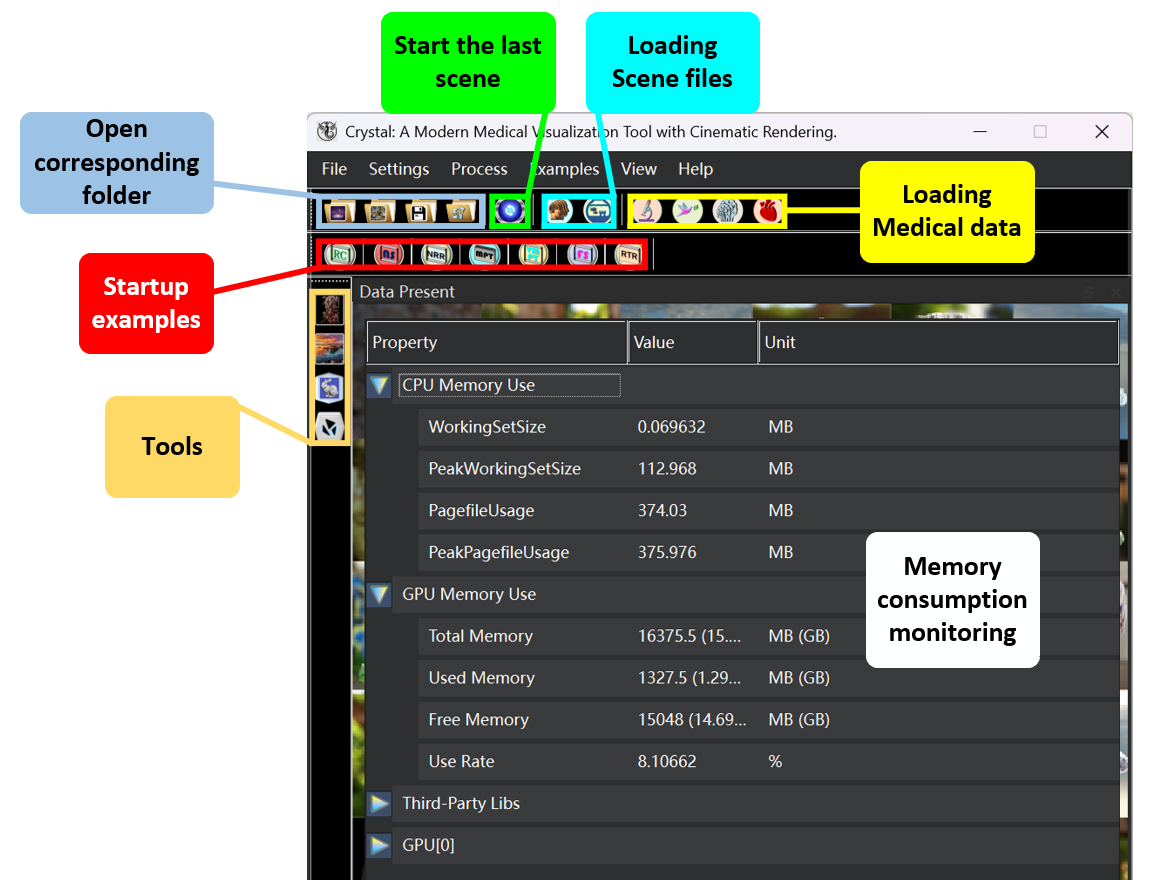
The initial guide by Chunxiao Xu, PhD illustrated the earlier launcher below. Bundled Demo resources lived in the software’s Resources directory, and locally managed Example files could be organized under CrystalAssets. Existing scene files can still be opened directly through the XML or JSON entry point.